Welcome to Interactive Music Theory Lab
Your comprehensive tool for learning music theory, building chords, creating progressions, and composing melodies.
Start with the Theory Academy tab for structured lessons that will teach you from the basics.
What can you do here?
Build Chords
Explore 50+ chord types with inversions, voicings, and hear how they sound on the interactive piano.
Create Progressions
Build chord progressions, organize them into sections, and see them rendered as professional notation.
Get Smart Suggestions
Press Tab to open the theory-based recommendations modal for chord, melody, and harmonization ideas.
Learn Music Theory
Interactive lessons from basics to advanced concepts, with quizzes and hands-on exercises.
App Overview
The app is organized into four main tabs, each serving a specific purpose. You can switch between tabs using the navigation at the top of the screen.

Composition Studio
Build chord progressions, arrange them into song sections, add melodies, and see everything rendered as professional sheet music notation.
Chord Lab
Your workspace for building and exploring individual chords. Select a root note and chord type, adjust inversions and voicings, and hear how it sounds.
Scale Explorer
Explore major, minor, and modal scales. See fingering patterns on the keyboard and understand which chords belong to each scale.
Theory Academy
Structured lessons from foundational concepts to advanced theory. Interactive exercises, quizzes, and a songwriting wizard to apply what you learn.
Chord Lab
The Chord Lab is where you build and explore individual chords. Think of it as your chord workbench - select a root note, choose a chord type, and hear how it sounds.
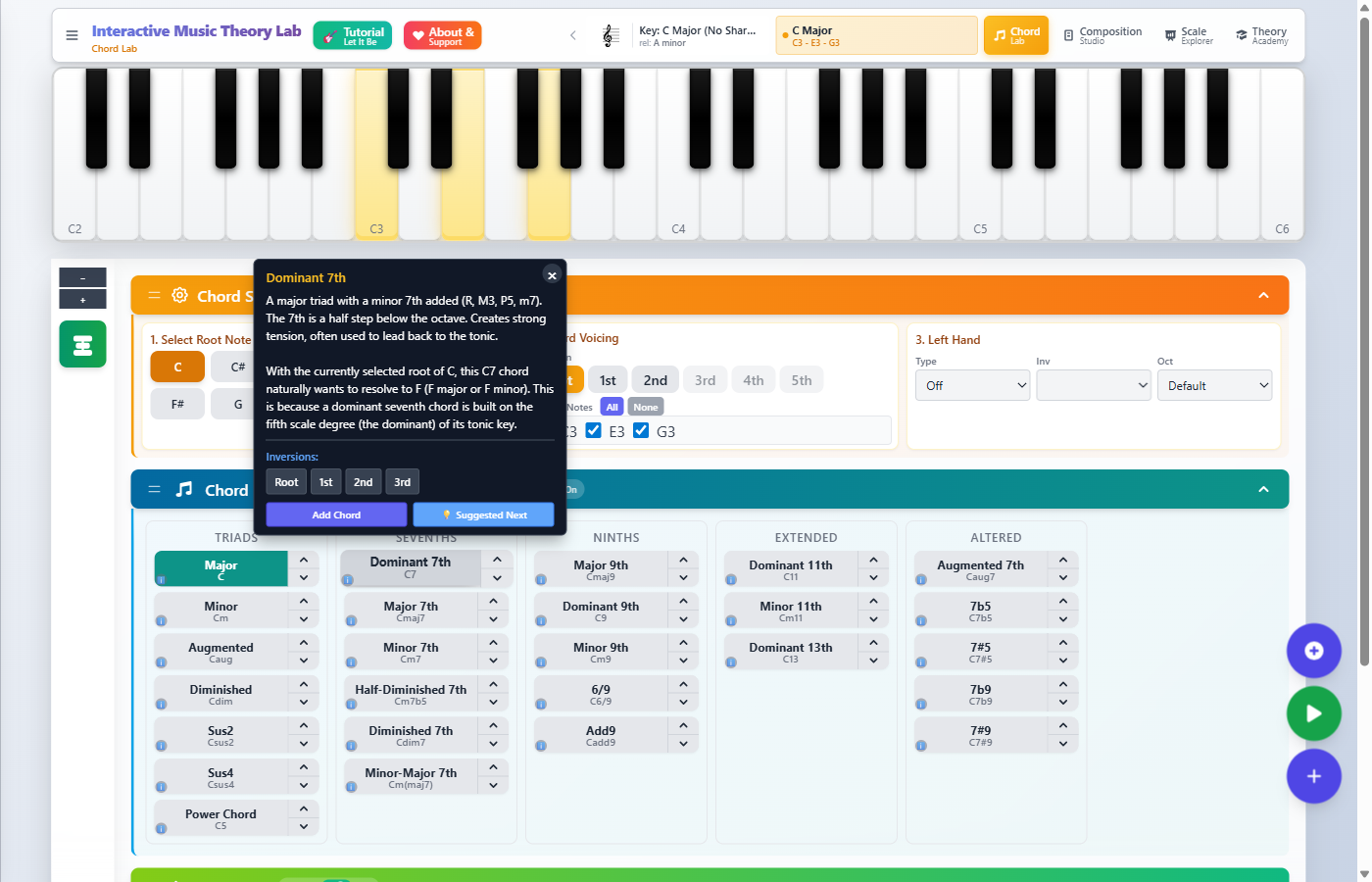
Building Your First Chord
Select a Root Note
Use the Root Note dropdown to choose the base note of your chord (C, D, E, etc.). This is the note the chord is built upon and named after.
Choose a Chord Type
Select from 50+ chord types in the Chord Type dropdown. Start with basics like Major and Minor, then explore 7ths, suspended, and extended chords.
Hear Your Chord
Click the Play button or click directly on the highlighted keys on the piano keyboard to hear how your chord sounds.
Chord Controls
Inversion
Changes which note is in the bass (lowest position). Root position has the root note in the bass. First inversion puts the 3rd in the bass, second inversion puts the 5th in the bass.
Octave
Shifts the entire chord up or down in pitch. Lower octaves sound deeper and fuller, higher octaves sound brighter.
Left Hand (Bass)
Controls what the left hand plays: Off (nothing), Root (single bass note), Fifth (root + fifth), Octave (root in two octaves), or Chord (full chord voicing).
Omit Notes
Remove specific notes from the chord. Useful for creating open voicings or avoiding note clashes when combining with other instruments.
Adding Chords to Your Progression
Once you've built a chord you like, you can add it to your progression to start composing.
Click "Add to Progression"
Find the Add to Progression button below the chord controls. This adds your current chord to the end of your progression.
View in Progression Strip
Your chord appears in the progression strip at the bottom of the screen. You can see all added chords as cards showing their names.
Continue Building
Add more chords to create a complete progression. A typical pop song uses 4-8 chords. Switch to the Composition Studio tab to work with your progression in detail.
The Piano Keyboard
The interactive piano keyboard shows you which notes are in your current chord (highlighted keys) and lets you play notes by clicking on them.
- Highlighted keys show the notes in your current chord
- Click any key to hear that individual note
- Note names appear on the keys to help you learn
- Colors indicate chord function when in a progression context
Composition Studio
The Composition Studio is where your chord progression comes to life. Here you can arrange chords, organize them into sections, add melodies, and see your music rendered as professional notation.
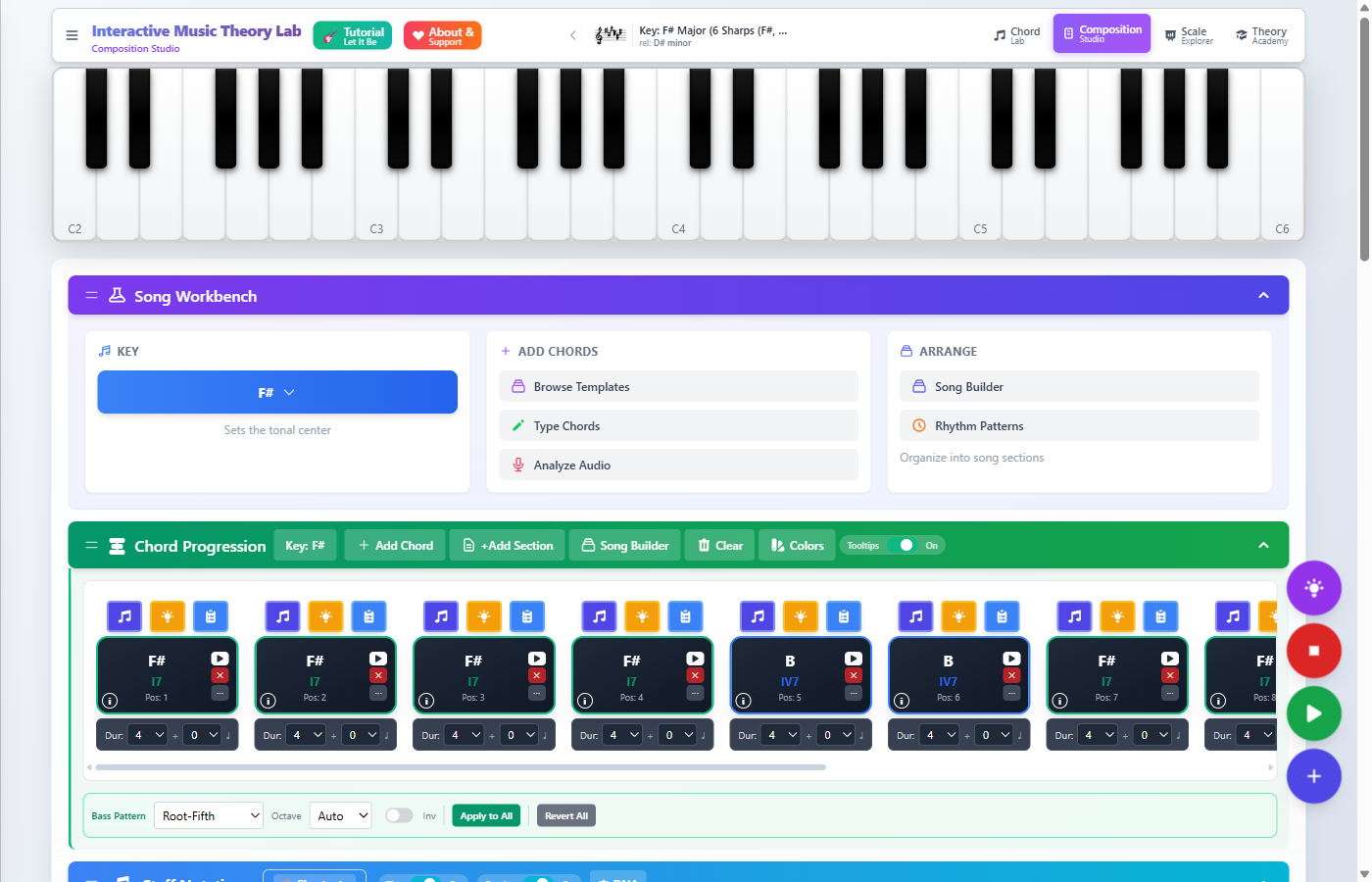
Working with Your Progression
Your progression appears as a series of chord cards. Each card shows the chord name and can be clicked to select it.
Selecting Chords
Click on a chord card to select it. Selected chords are highlighted. Hold Shift and click to select multiple adjacent chords.
Playing Your Progression
Use the Play button in the toolbar to hear your entire progression. The currently playing chord will be highlighted.
Editing a Chord
Double-click a chord card to open the edit panel. Here you can change the chord type, inversion, duration (beats), and other properties.
Rearranging Chords
Drag and Drop
Click and hold on a chord card, then drag it to a new position. Release to drop it in place. Other chords will shift to make room.
Delete Chords
Select a chord and press Delete or Backspace, or use the delete button that appears on hover.
Duplicate Chords
Right-click a chord to access the context menu with options to duplicate, copy, or paste chords.
Toolbar Actions
Opens the chord selector to add a new chord to your progression.
Groups selected chords into a section (Verse, Chorus, Bridge, etc.).
Opens the song structure builder to arrange sections into a full song.
Removes all chords from your progression. Use with caution!
Musical Notation
Your progression is automatically rendered as professional sheet music notation. The notation shows:
- Grand staff with treble and bass clefs
- Chord symbols above the staff (C, Am7, F, etc.)
- Melody notes in the treble clef (if added)
- Bass notes in the bass clef
Use the Export button to save your composition as a PDF lead sheet, MIDI file, or shareable link.
Smart Recommendations
The Recommendations Modal is your creative assistant. It analyzes your current progression using music theory principles and suggests chords, melodies, and harmonizations that will sound great.
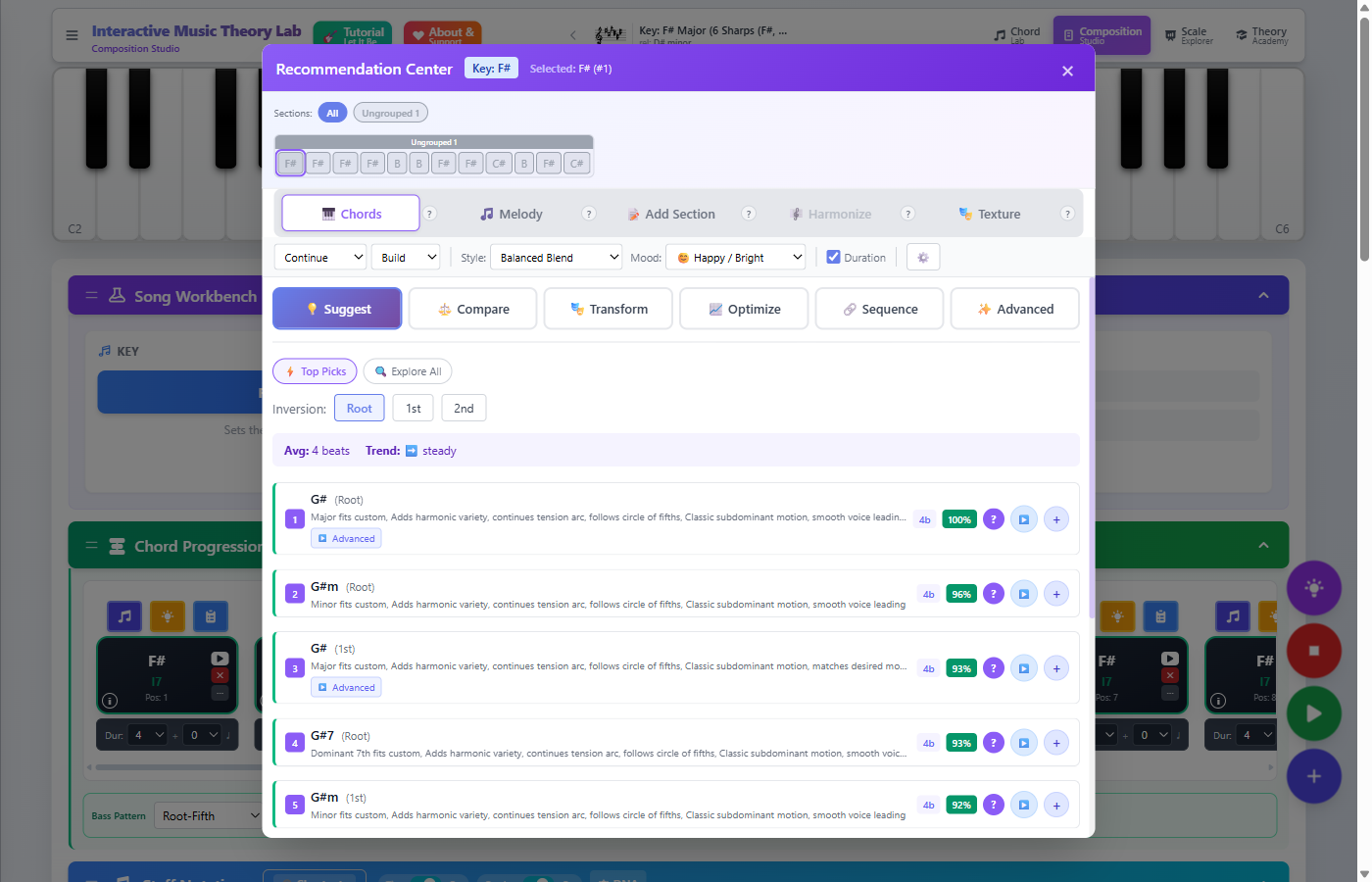
Press Tab anywhere in the app to open the Recommendations Modal. Press R as an alternative.
Opening the Modal
What You Can Get
Chord Suggestions
Get intelligent suggestions for what chord should come next in your progression. Each suggestion includes:
- - The suggested chord with Roman numeral analysis
- - A score indicating how well it fits
- - An explanation of why it works
- - Preview playback before adding
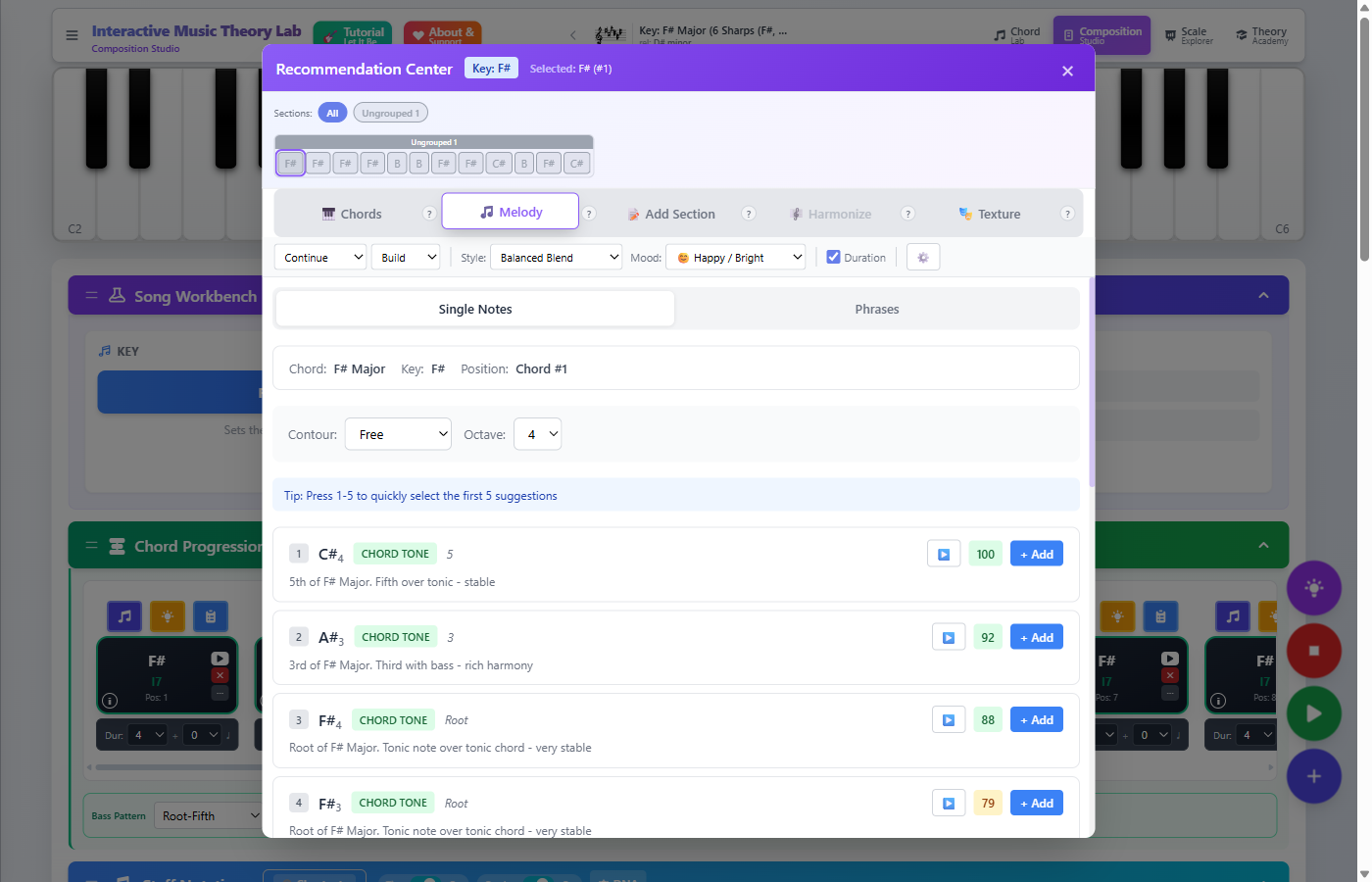
Melody Ideas
Get suggestions for melody notes and phrases that fit over your chord progression:
- - Individual note suggestions with chord tone analysis
- - Melodic phrases and patterns
- - Style-aware suggestions (pop, jazz, classical, etc.)
Auto-Harmonize
Have the AI generate harmonies for your existing melody:
- - Parallel harmonies (thirds, sixths)
- - Countermelody suggestions
- - Voice leading optimization
Using Suggestions
Preview
Hover over or click a suggestion to preview how it sounds with your existing progression.
Apply
Click the Apply button (or double-click) to add the suggestion to your composition.
Undo if Needed
Press Ctrl+Z to undo any changes you don't like.
Scale Explorer
The Scale Explorer helps you understand scales and modes - the foundation of melody writing. See which notes belong to each scale and how they map to the keyboard.
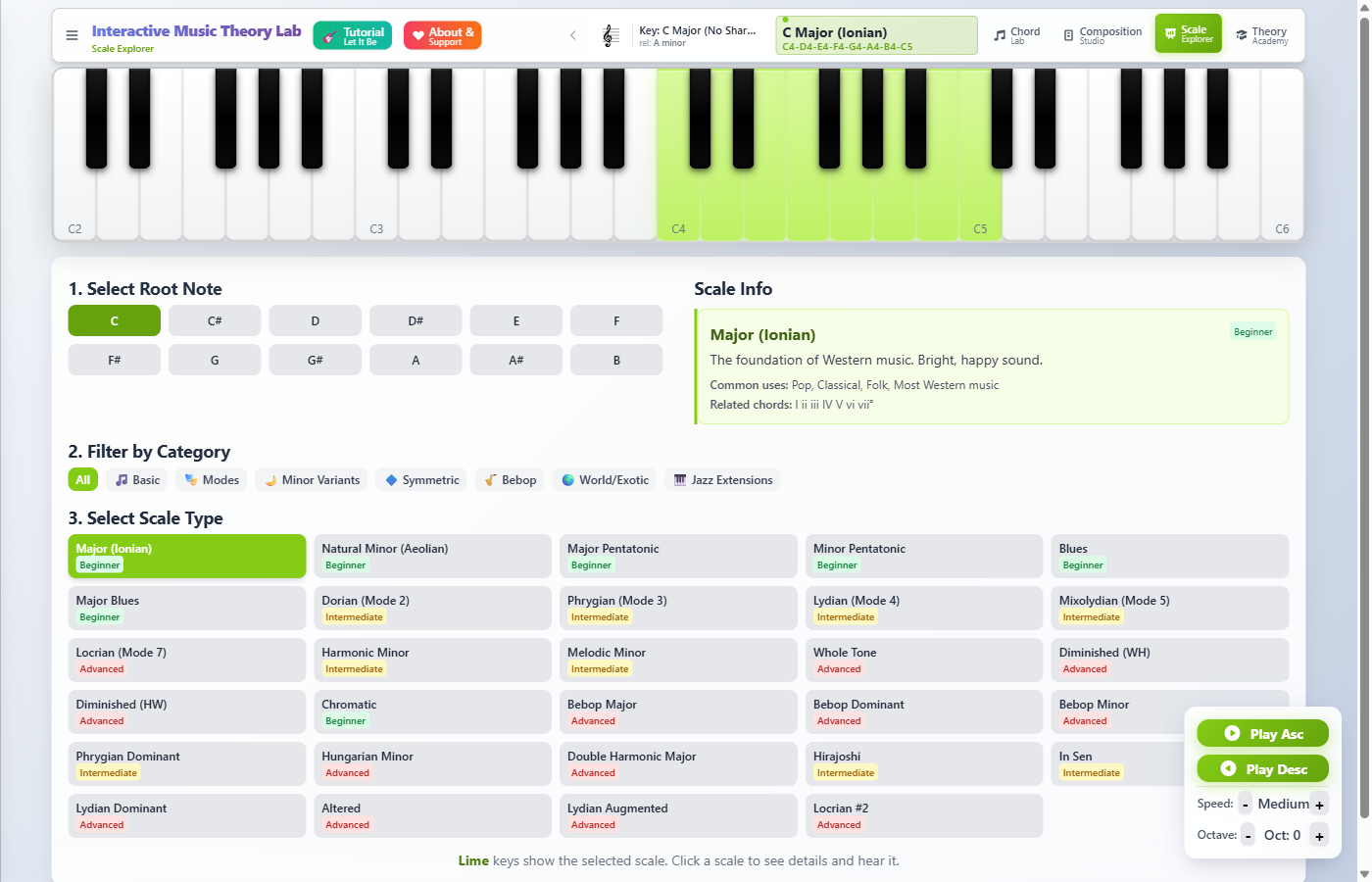
Select a Scale
Choose from major, natural minor, harmonic minor, melodic minor, and all seven modes (Dorian, Phrygian, Lydian, etc.).
Choose a Root
Select the starting note (root) for your scale. The keyboard will highlight all notes in that scale.
View Fingerings
See suggested fingering patterns for playing the scale on piano.
Related Chords
Discover which chords naturally belong to each scale - essential for writing progressions that sound cohesive.
Theory Academy
The Theory Academy is your structured learning path through music theory. Whether you're a complete beginner or looking to deepen your knowledge, there's a lesson path for you.
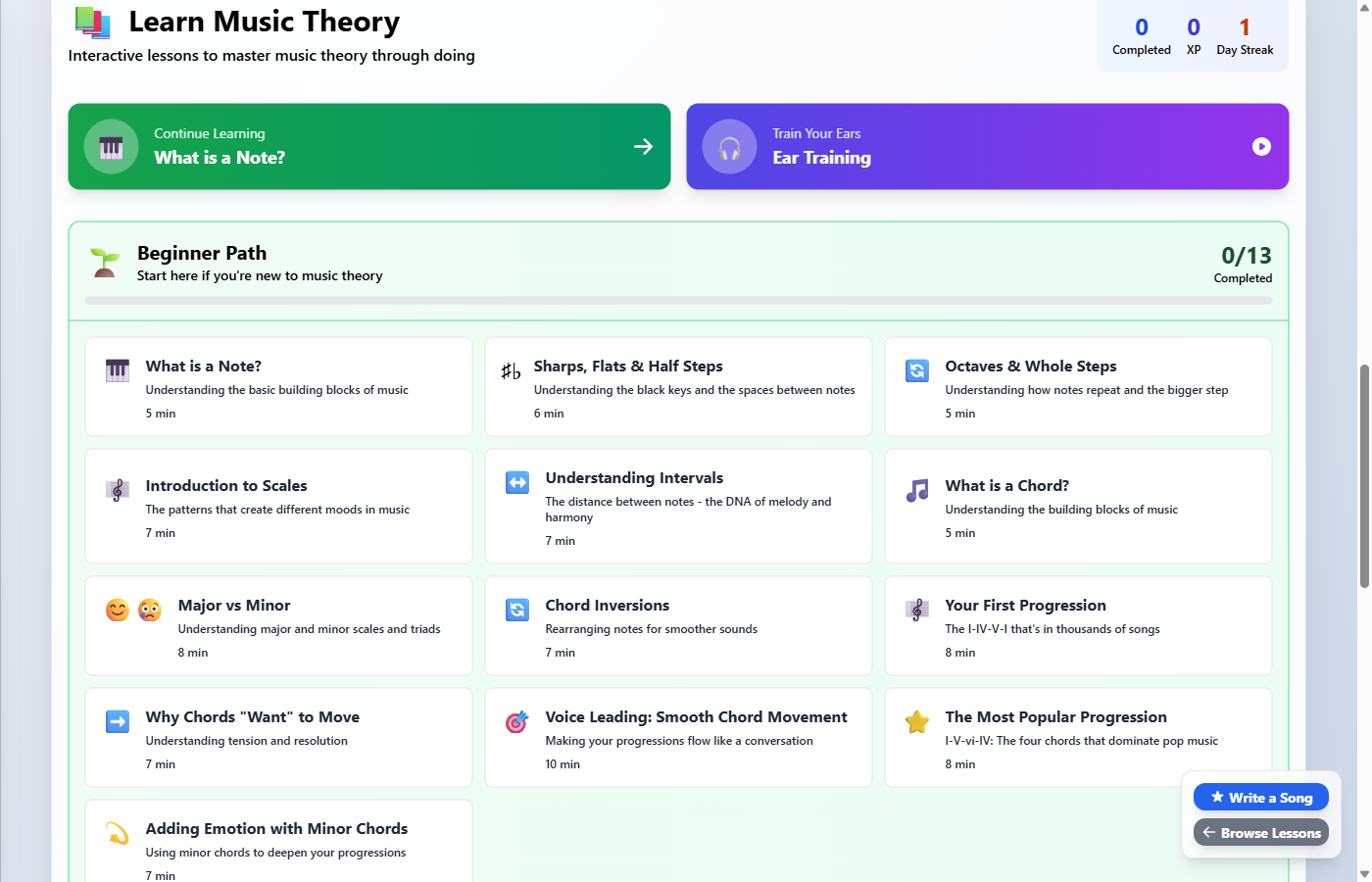
If you're new to music theory, start here! The Foundational lessons will teach you notes, scales, and intervals before moving on to chords.
Learning Paths
The Basics
What is a note? Sharps and flats. Octaves. Introduction to scales. Understanding intervals.
Chords & Progressions
What is a chord? Major vs minor. Your first progression. Why chords "want" to move. The most popular progression.
Advanced Harmony
7th chords. Borrowed chords. Secondary dominants. Voice leading principles.
Professional Techniques
Modal interchange. Tritone substitution. Complex chord voicings. Jazz harmony.
Songwriting Wizard
Don't know where to start? The Songwriting Wizard guides you through creating your first song step by step:
- 1. Choose a mood (Happy, Sad, Energetic, Dreamy, etc.)
- 2. Preview the suggested progression
- 3. Customize the key and variations
- 4. Get melody writing tips
- 5. Export to the Composition Studio and start creating!
Interactive Tutorials
The best way to learn is by doing! Interactive tutorials guide you step-by-step through creating real songs, teaching you the app's features as you go.
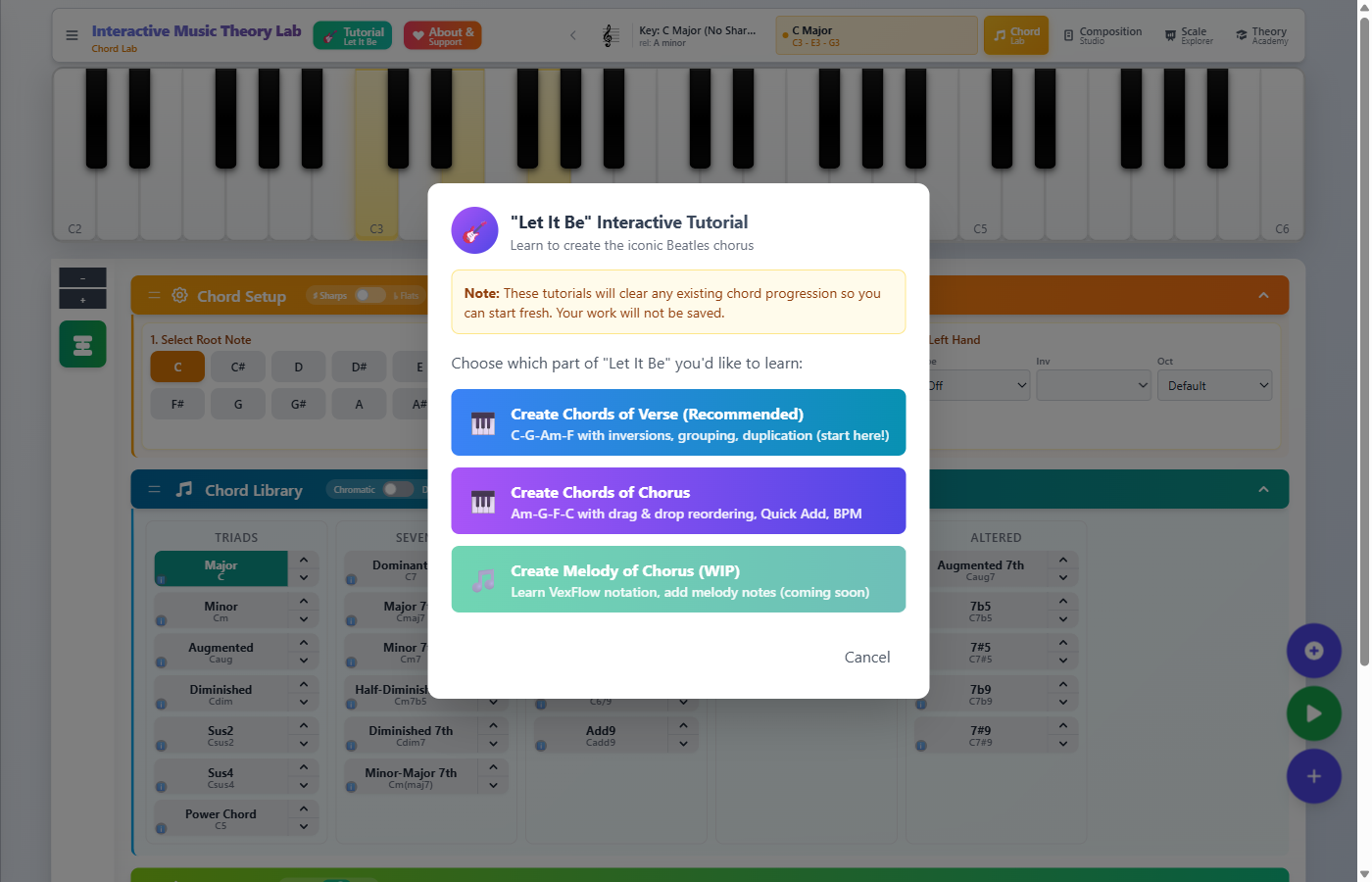
The "Let It Be" tutorial is the perfect introduction. Click the Tutorial Let It Be button in the header to begin!
How Tutorials Work
Tutorials use a guided step-by-step approach that highlights exactly what you need to do:
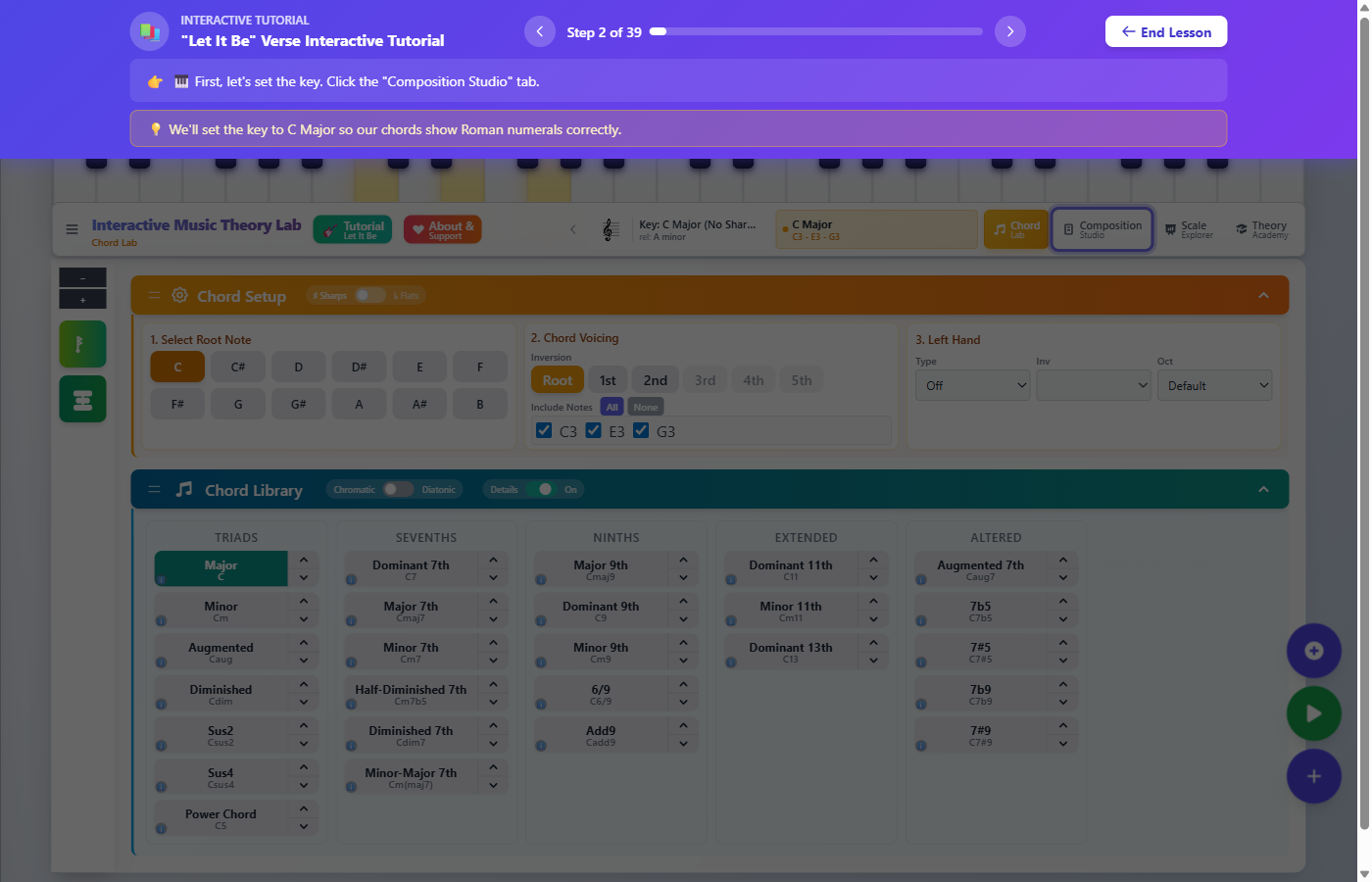
Step-by-Step Guidance
Each step tells you exactly what to do. The tutorial highlights the element you need to interact with.
Progress Tracking
The tutorial banner shows which step you're on (e.g., "Step 2 of 39") and provides navigation buttons.
Helpful Tips
Each step includes context about why you're doing something, helping you understand the concepts.
Exit Anytime
Click "End Lesson" if you want to stop the tutorial and explore on your own.
Available Tutorials
"Let It Be" Verse
Learn the C-G-Am-F progression with inversions, chord grouping, and duplication. The perfect starting point!
"Let It Be" Chorus
Build the Am-G-F-C progression using drag-and-drop reordering, Quick Add chords, and tempo (BPM) settings.
"Let It Be" Melody
Learn to add melody notes using the VexFlow notation editor.
Settings & Preferences
Customize the app to match your preferences. Access settings from the sidebar menu (click the hamburger icon in the top-left).
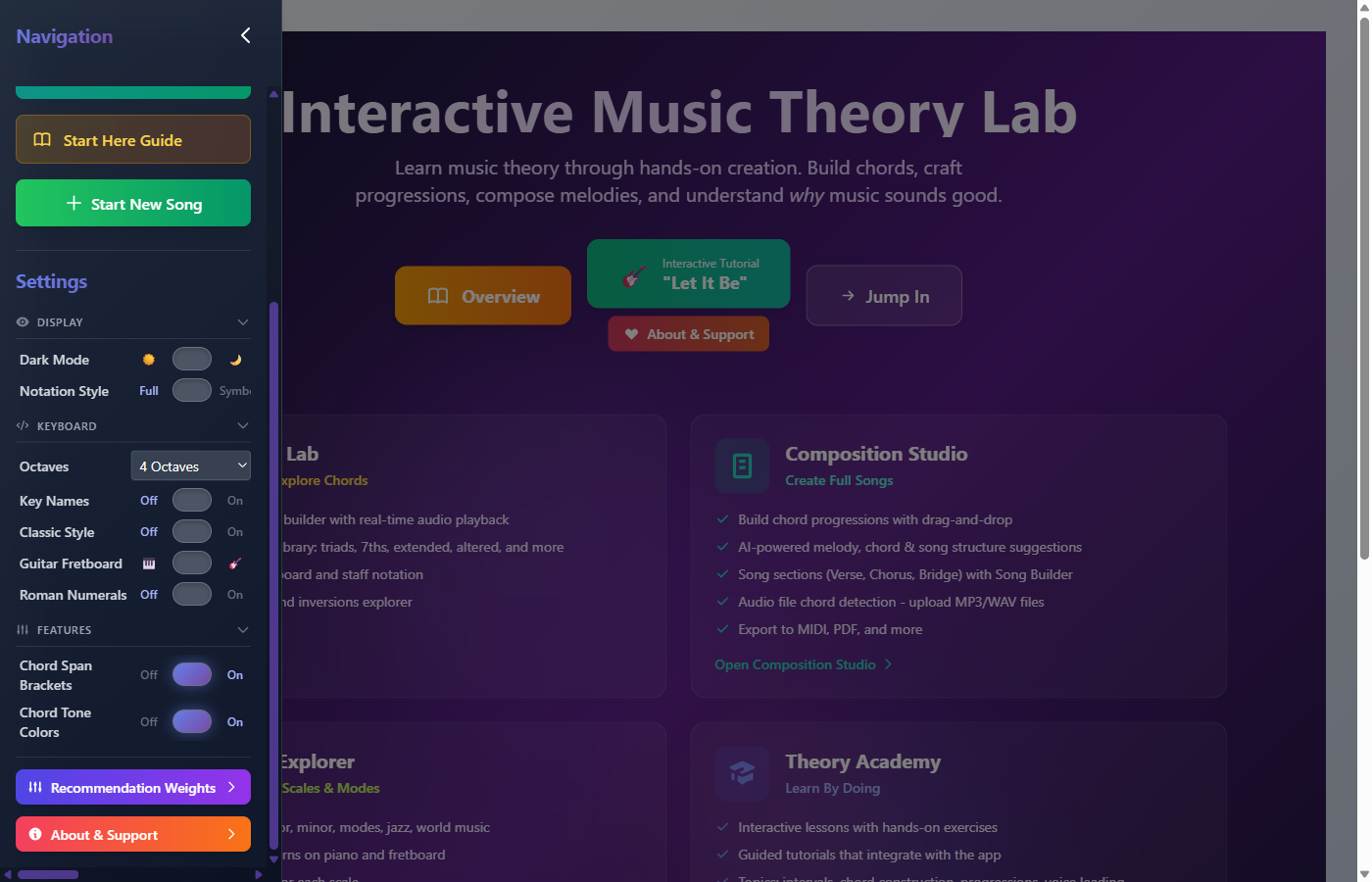
Settings Categories
Display Settings
- Dark Mode: Switch between light and dark themes
- Notation Style: Choose between full notation or simplified symbols
Keyboard Settings
- Octaves: Set how many octaves the piano keyboard displays (2-8)
- Key Names: Show or hide note names on piano keys
- Classic Style: Toggle between modern and classic piano styling
- Guitar Fretboard: Switch between piano keyboard and guitar fretboard view
- Roman Numerals: Display chord function as Roman numerals (I, IV, V, etc.)
Feature Settings
- Chord Span Brackets: Show brackets indicating chord duration in notation
- Chord Tone Colors: Color-code notes based on their function in the chord (root, third, fifth, etc.)
Recommendation Weights
Fine-tune how the AI generates chord and melody suggestions by adjusting the recommendation weights. This powerful feature lets you customize suggestions to match your musical style and preferences.
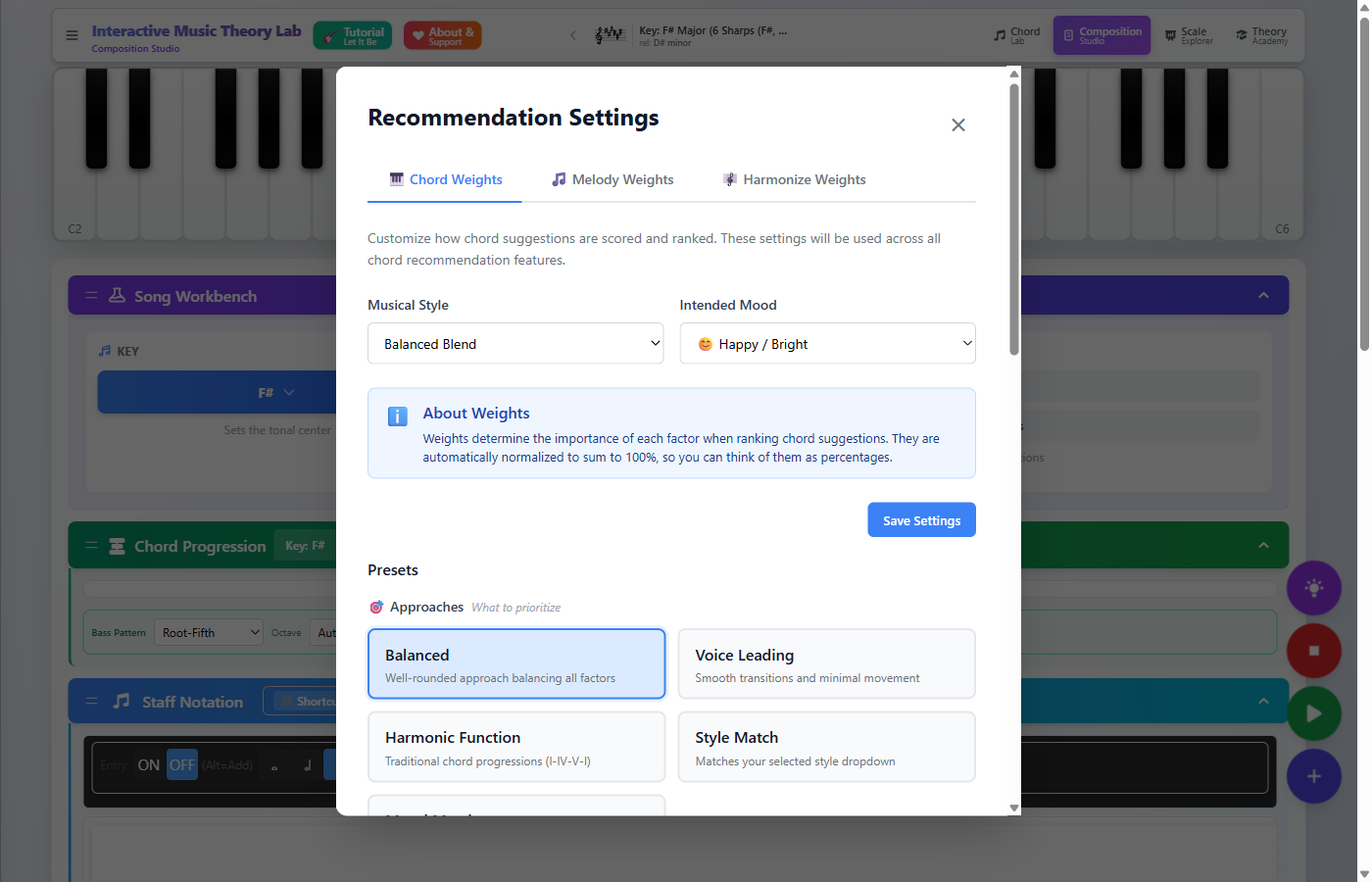
Open the sidebar and click Recommendation Weights at the bottom of the Settings section.
Quick Settings
Musical Style
Choose from Balanced Blend, Top 40/Pop, Jazz/Complex, Classical/Traditional, Rock/Power, or Indie/Alternative.
Intended Mood
Set the emotional character: Happy/Bright, Melancholic/Dark, Jazzy/Complex, Tense/Dramatic, Calm/Peaceful, or Energetic/Driving.
Presets
Use presets for quick configuration:
Approaches
Balanced, Voice Leading, Harmonic Function, Style Match, Mood Match
Genre Templates
Pop, Rock, Bossa Nova, Blues, Jazz, Classical, Gospel, R&B/Soul, Country, Latin Jazz
Custom Weights
For advanced control, adjust individual factors that influence recommendations:
Harmonic Function
How well chords follow traditional progressions (tonic → subdominant → dominant)
Voice Leading
Smoothness of voice movement - minimal jumps, common tones, contrary motion
Style Fit
How well chords match your selected musical style
Mood Fit
How well chords match your desired emotional character
Modal Interchange
How often to suggest borrowed chords from parallel modes (like bVII, iv, bVI from parallel minor)
Keyboard Shortcuts
Speed up your workflow with these keyboard shortcuts. Press ? anywhere in the app to see the full list.
Global
Recommendations
Tips & Tricks
Start Simple
Begin with just 4 chords. Many hit songs use only C, G, Am, and F. Master the basics before exploring complex chords.
Use the AI
Don't know what chord comes next? Press Tab to get AI suggestions. The explanations help you learn why certain chords work together.
Listen, Don't Just Look
Always play your progressions! Your ears are the best judge. If something sounds wrong, trust that instinct.
Learn by Doing
The Theory Academy lessons include interactive exercises. Actually building chords and progressions helps concepts stick better than just reading about them.
Save Your Work
Use the Export feature to save your compositions. You can export as PDF, MIDI, or a shareable link.
Ready to Start Creating?
You now have everything you need to begin your music theory journey.
Launch the App